Reviewing the Analysis
After a file is submitted for analysis and processed, you can review the results in the UI.
Submission Overview
Note
The screenshots shown in this section are based on the analysis of this sample from MalwareBazaar using Assemblyline out of the box. Your analysis results may vary based on your system's configuration, services you have enabled, and imported rulesets.
Report View
Assemblyline provides a summarized view of the analysis focusing on the most important information about the file. This includes the file's metadata, such as its name, size, type, and hashes, as well as a high-level overview of the analysis results, such as the verdict, score, and attribution.
This view is only accessible if the analysis has been completed, otherwise the site will redirect you to the Detailed View where you can monitor the progress of the analysis in real-time.
Save as PDF
You can print or save the report as a PDF using the printer icon button in the top right corner of the report.
Detailed View
For a more in-depth look at the analysis, you can access the detailed view. This view provides comprehensive information about the file, including all the metadata, the results from each service that analyzed the file, and any additional information or context that may be relevant to understanding the analysis results.
Submission Information
This section keeps a record of the submission details such as the time of submission, the user who submitted the file, and the parameters used for the analysis.
Analysis Information
Interactive Analysis Supported
Some elements support interactions such as left-clicking to highlight all occurences of the data across the analysis results, and right-clicking to access a context menu with options to search for the data across the system or copy data to your clipboard.
Attribution
Attribution represents the associations that the system can make between the file and known entities such as malware families, threat actors, or campaigns, which we use the ATT&CK framework to help categorize. Attribution is sourced from YARA signatures (when the actor tag is provided in the rule's metadata) and anti-virus vendor names.
File Tree
The file tree allows you to navigate through the contents of the root file and it's children and review the analysis results for each individual file.
This is particularly useful for analyzing files that are packed or obfuscated, which provides a clear trace of the analysis process through the unpacking or deobfuscation stages.

File Details
When selecting a file for review, the UI will open a drawer containing a detailed view of the analysis results for that file.
File Actions
The top-right corner of the file detail view contains a series of action buttons:
- Related Submissions: Find all submissions that include this file
- Download: Download the file. By default it is packaged in the CaRT format to prevent accidental execution
- File Viewer: Open the built-in viewer (ASCII, Strings, Hex)
- Resubmit: Resubmit the file for a fresh analysis
- Safelist: Add the file to the system safelist
- Badlist: Add the file to the system badlist
File Viewer
The UI has a built-in file viewer that supports a wide variety of different formats, allowing you to review the contents of the file directly within the UI without needing to download it and open it with an external application.
This allows you to inspect the file contents along with reviewing the analysis results which can help you understand the context of the generated data and make informed decisions based on the analysis results.
File Frequency
The File Frequency section shows how many times this file has been seen in the system, along with first and last seen timestamps. These values are affected by the data retention period configured on the system.
Generated Tags & Heuristics
This section is similar to the "Tags" and "Heuristics" section in the submission, but it focuses specifically on the data that were generated as a result of the analysis of the file being observed.
Clicking on a tag will highlight which service it originated from, making it easy to trace where a specific indicator was extracted.
Service Results
This is where you can review the results from each service that analyzed the file. The services are listed in alphabetical order, and you can expand each service to see the details of its analysis results.
There are three possible outcomes for a service that analyzed the file: empty results, error results, or generated results.
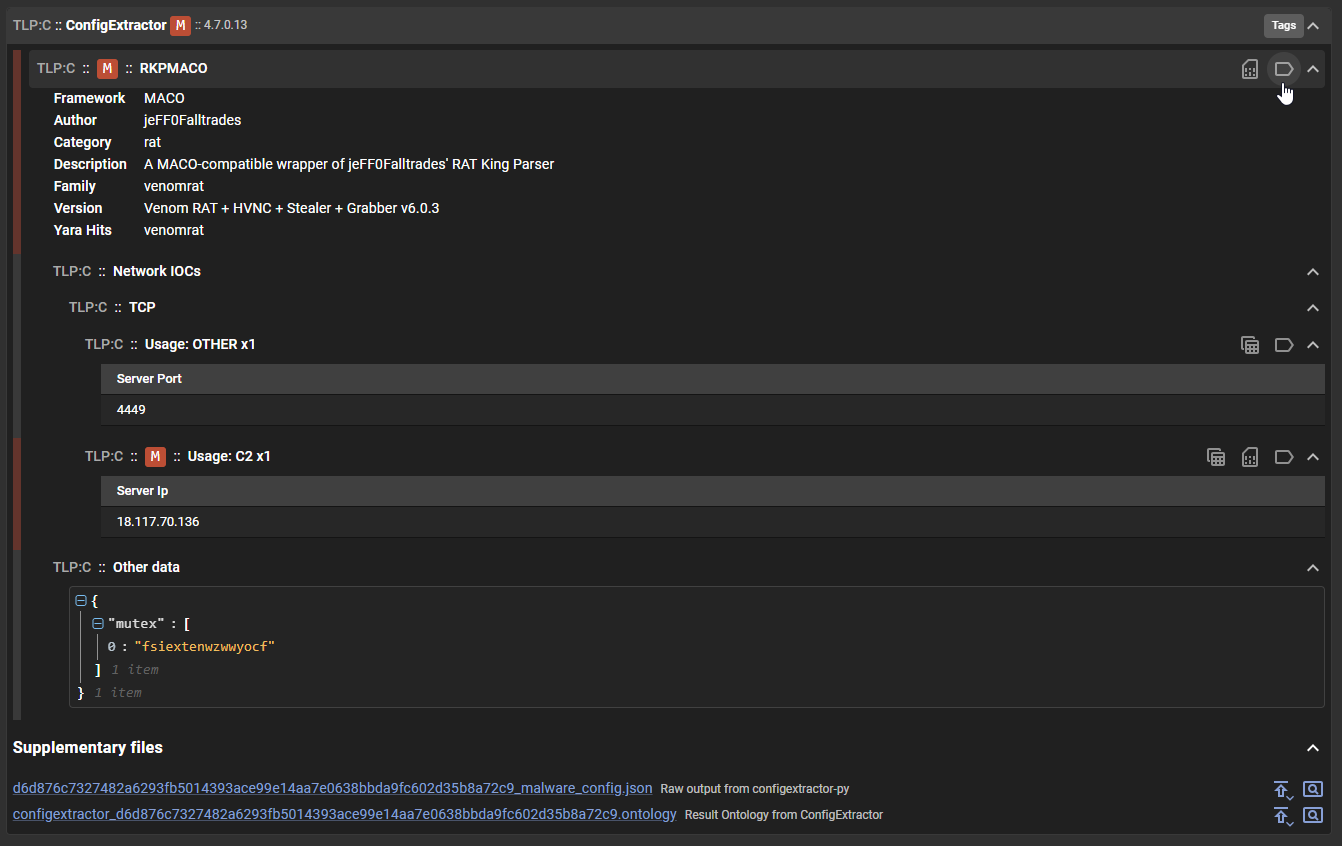
Every service result is a composition of sections and subsections that organize the data generated by the service. The structure of these sections can vary greatly between services, as each service is designed to analyze different aspects of the file and generate different types of data.
Result sections can contain "tags" () which can be used for pivoting and "heuristics" () that show behaviours raised by the service.
When a service is updated, cached results from a previous version are no longer used. If multiple result versions are available for a service, a dropdown will appear allowing you to compare results from older analysis runs.
This section indicates that the service did not generate any results for the file. This could be because the service did not find anything of interest in the file.

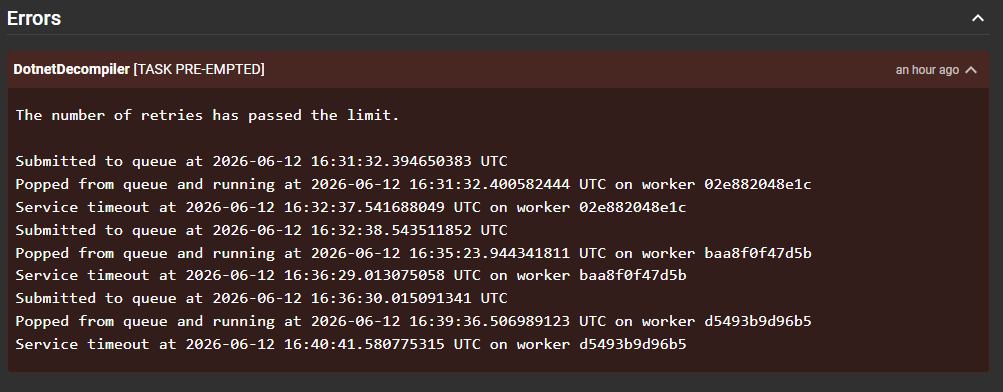
This section indicates that there was an error during the analysis of the file by the service. This could be due to various reasons such as a timeout, an issue with the service itself, or a problem with the file that caused the service to fail.
This section can also contain warnings raised by the service, which are not necessarily errors but are important to take note of when reviewing the analysis results. An example of such a warning could be related to tagging such as tagging "abc.com" as a "IP" which the system's internal validation would raise a warning for since "abc.com" is not a valid IP address.