Submitting to Assemblyline
To get started with using Assemblyline for malware analysis, the first step is to submit a file or URL for analysis.
Submitting Files
The UI supports multiple methods for submitting files for analysis, giving you the flexibility to choose the method that best suits your needs. The most common methods for submitting files are:
File Upload
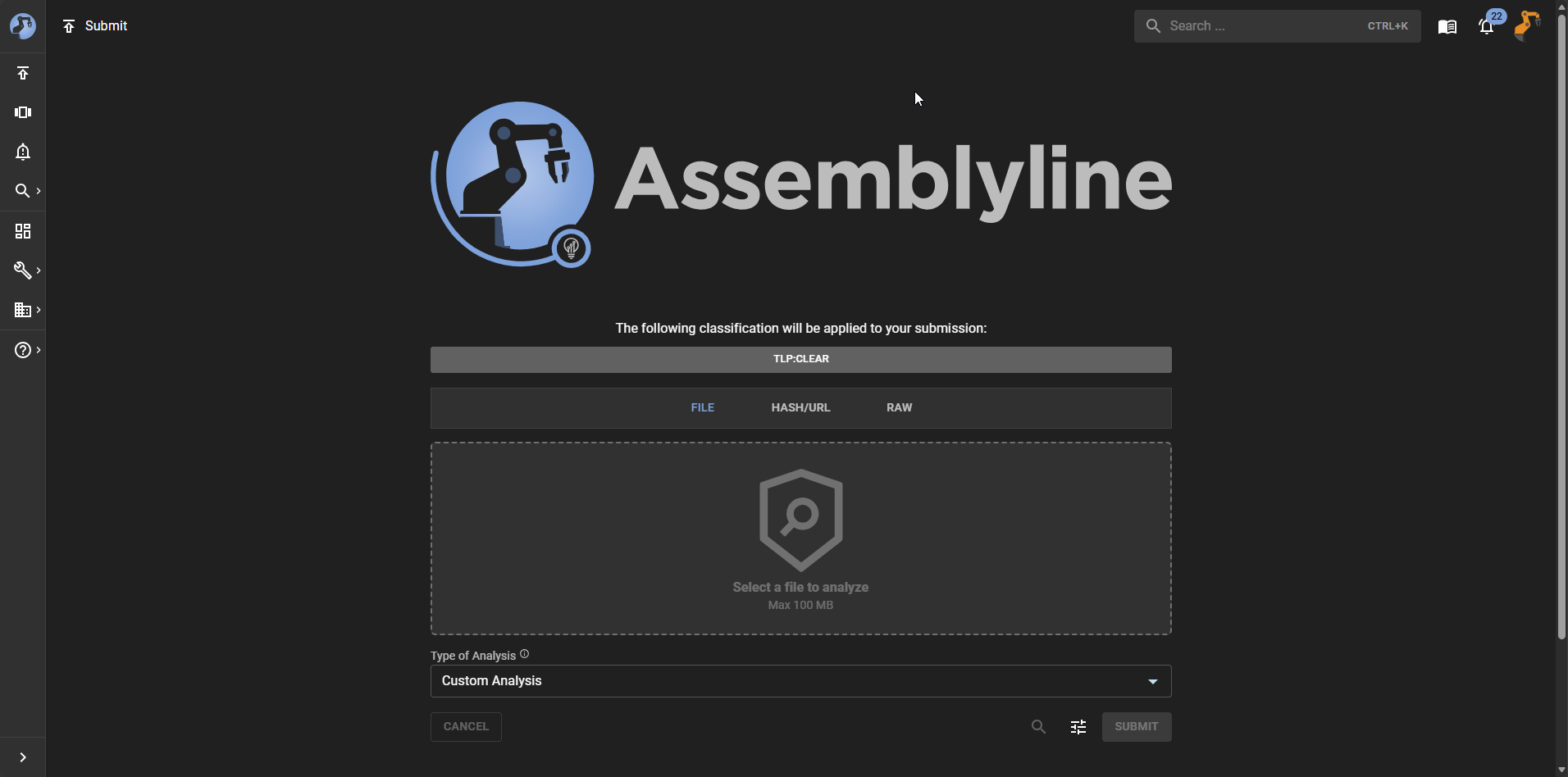
You can drag-and-drop files directly into the dropzone in the UI or click to select files from your local system to upload for analysis under the "File" tab.
Using Identifiers
You can also submit files for analysis by providing their hashes (MD5, SHA1, or SHA256) if the file has already been analyzed or is known to the system. This can be done under the "Hash/URL" tab.
The system also supports using custom identifiers for fetching files from file sources but this has to be setup by the administrator.
If your deployment has "File Sources" configured, then the UI will attempt to auto-detect the type of file identifier you are submitting and provide you with a list of options that the system can use to retrieve the file for analysis. An example of a file source would be one for VirusTotal or Malaware Bazaar that can leverage the file hashes for fetching.
From Clipboard
The UI also supports submitting files directly from your clipboard. At the moment, the system allows for you to paste the contents of your clipboard into the "Raw" tab and this allows you to modify the content before submitting it for analysis.
More commonly, this feature is used to submit snippets of text or code for analysis. For example, you could paste a snippet of PowerShell code into the "Raw" tab and submit it for analysis. The system will treat the pasted content as a file and analyze it accordingly.
Submitting URLs
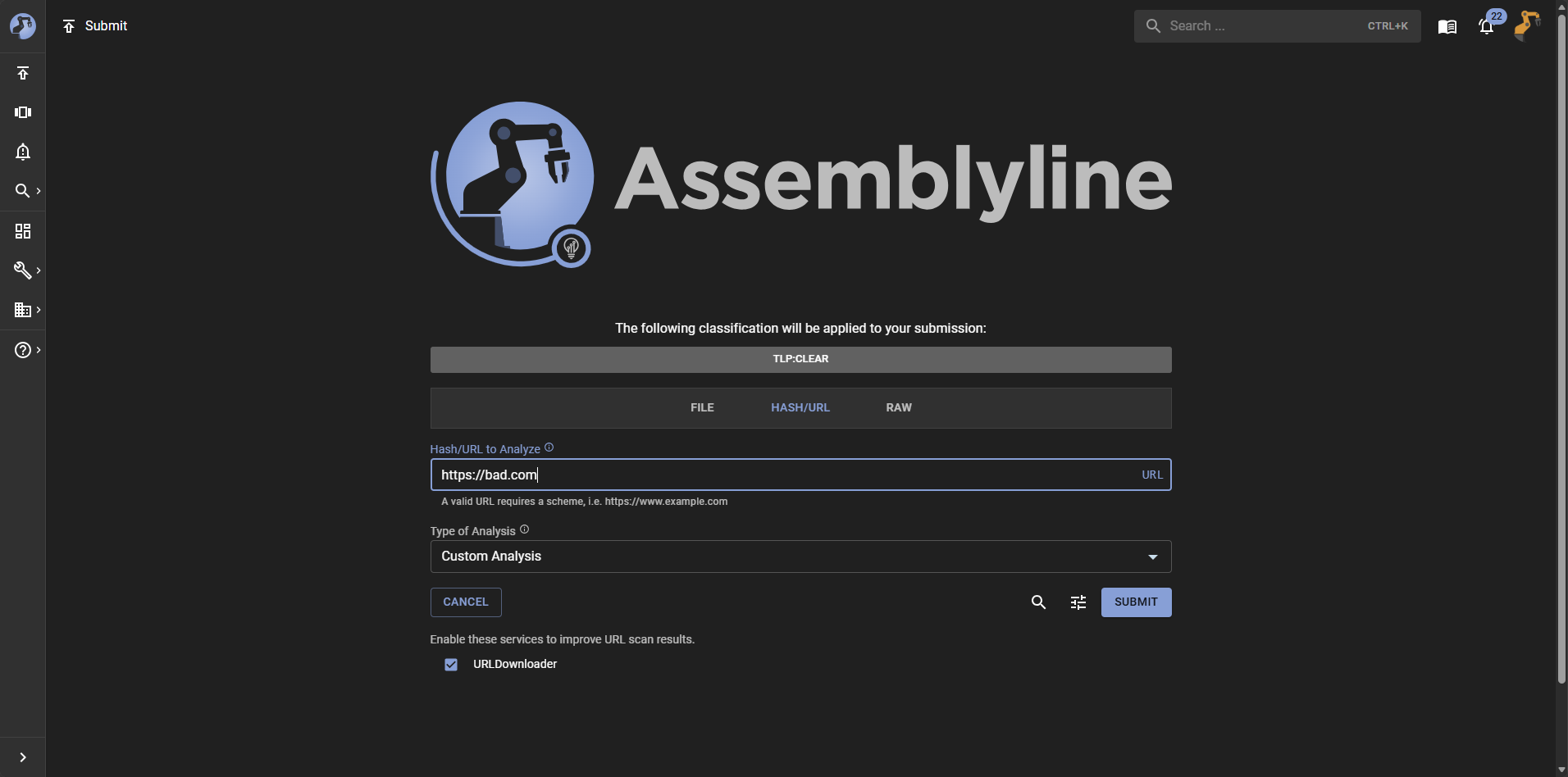
If you want to submit a URL for analysis, the system also allows you to do so under the "Hash/URL" tab.
When you submit a URL for analysis, the system creates a URI file that acts as the entry point for analysis. Assemblyline can also interact with external resources like fetching a second stage payload from an HTTP/HTTPS link found in a malicious file.
For successful fetching of a URI, relevant services such as the URLDownloader service should be selected.
Providing the URL
When you submit a URL for analysis, the system will provide you with a list of services from the "Internet Connected" category that can be used for specialized fetching (ie. proxy support, custom user agents, etc.).
Using a URI file
A URI file is a YAML file with a basic structure like this:
# Assemblyline URI file
uri: <scheme>://<host>
It is a file that can contain more elements for use-cases where the services can leverage them. The most important parts are the "uri" key in the yaml file, which needs to be a valid uri with a scheme and a host, and the comment on top, to help with Identification. The scheme is going to be used to create the file type, so if you are using uri: http://site.com it is going to be a file of type uri/http and if you are using uri: ftp://site.com then you will have a uri/ftp. This will make it possible to route to different services based on the scheme. In the case of uri/ftp, you will probably need more information, such as yaml keys like passive: True.
The following is a more complete and complex example of a URI file:
# Assemblyline URI file
uri: https://mb-api.abuse.ch/api/v1/
data: query=get_info&hash=52307f9ce784496218f2165be83c2486ad809da98026166b871dc279d40a4d1f
headers:
  Content-Type: application/x-www-form-urlencoded
method: POST
The file type would be uri/https and the other yaml keys will be ignored during the identification. The extra keys in the yaml file can be used by the service handling this specific file to provide a more customized behavior, closer to what the user is asking. A specific user-agent, referer or other headers could be used to fetch a second stage for a server that would required specific values. Through those extra values, URLDownloader, now supports more methods like POST. A simple change from query=get_info to query=get_file in the data and the service should be downloading that file from MalwareBazaar!
Since URI files are very specific to Assemblyline, we take the time to rewrite any incoming file so that the comment # Assemblyline URI file is on the first line, then the uri key, then all the other keys in alphabetical order. This is done to de-duplicate "identical" files and use caching. A key like extra_key: ["first", "second", "third", "fourth"] will have its order preserved and is going to be converted to the following:
extra_key:
- first
- second
- third
- fourth
Customizing the Analysis
In addition to providing the input for analysis, you can also define the parameters of your analysis to ensure that you get the most relevant results from the system. This includes selecting which services you want to use for the analysis and configuring any specific parameters for those services.
Submission Profiles
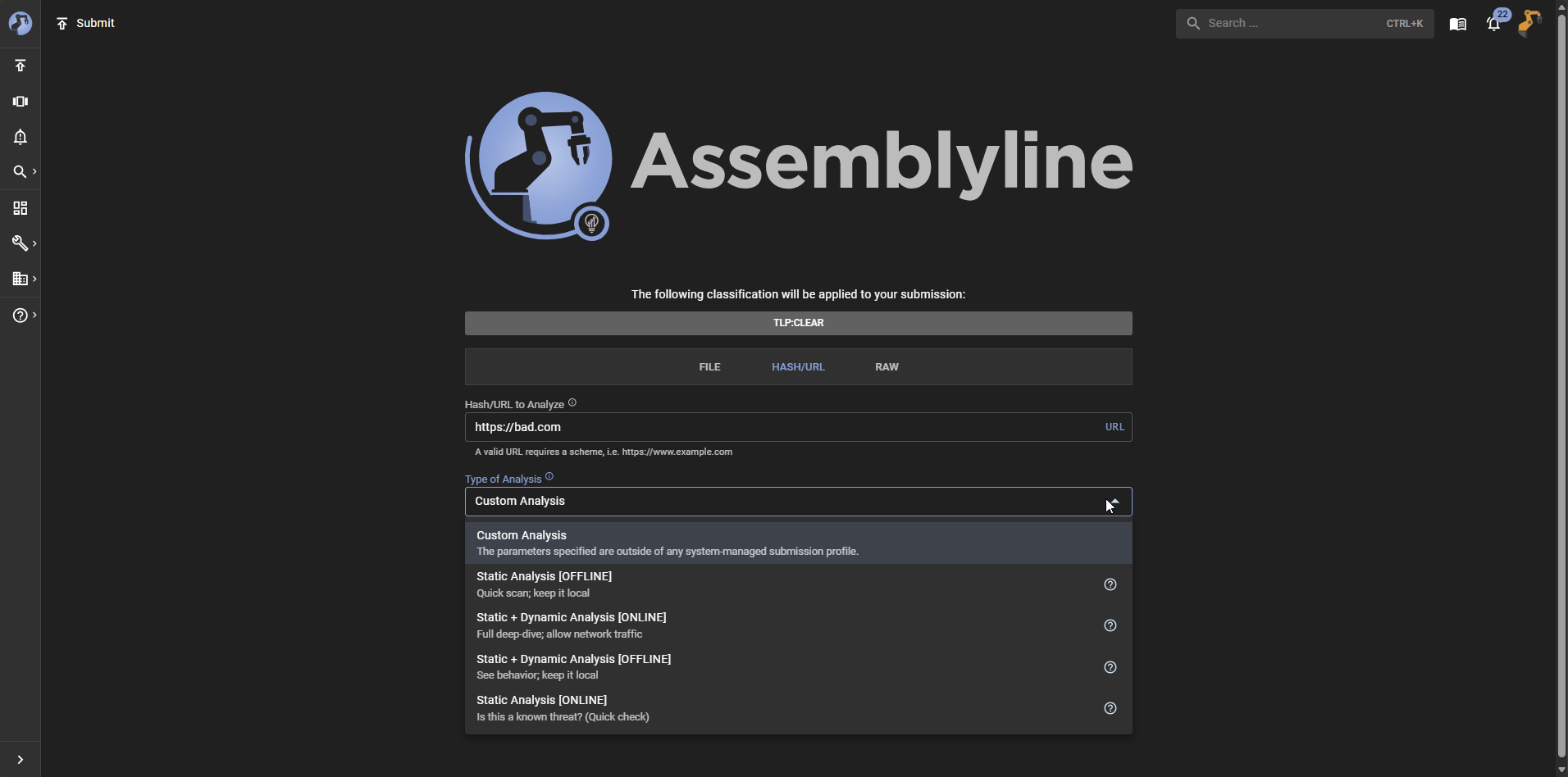
These are profiles of analysis defined by your system administrators that are designed to be used for specific types of analysis. For example, there could be a submission profile for analyzing email attachments that includes services that are relevant for analyzing email files.
The Assemblyline team has included some default submission profiles that are designed to be used for common types of analysis.
Submission Parameters
For those that are more familiar with the system and want to have more control over the analysis, you can define your own submission parameters. This allows you to select which services you want to use for the analysis and configure any specific parameters for those services.
To show the submission parameters, click on the icon next to the "Submit" button.
The table below provides a high-level overview of the different types of parameters that you can define for your analysis:
| Section | Description | Example |
|---|---|---|
| System Parameters | These are parameters used by the core system to define how the analysis should be performed. For example, you can specify the priority of the analysis, which can affect how quickly the analysis is performed and how much resources are allocated to it. The "Submission Data" section is a common place to insert ephemeral data that all services can leverage. This can useful for setting something like a password or token that services can use during the analysis rather than setting it per-service. For a full list of system parameters and their descriptions, please refer to the Submission Parameters model. |
|
| Service Selection | The service selection allows you to choose which services you want to use for the analysis. Services are categorized based on their functionality, such as Static Analysis, Dynamic Analysis, Extraction, etc. so you can decide to select all services within a category by just clicking on the category name or pick specific services that you want to use for the analysis. |
|
| Service Parameters | These are parameters that are specific to each service and allow you to configure how the service should perform its analysis. These parameters can vary widely depending on the service and can include things like the level of analysis, specific settings for the service, or any other parameters that the service may require. For example, you might have a password protected file that you want to analyze, so you can provide the password as a service parameter for the Extract service to use. |
Checking for Existing Analysis
Once you provide an input for analysis, you can optionally request the system to check if there is already an existing analysis for the provided input.
This can be done by clicking on the icon next to the "Submit" button.