Alert Triage
When submissions have generate_alert enabled and trigger defined conditions, alerts are raised to draw attention for further examination.
This is a subset of the submission data that is deemed to be of interest, such as a file that has been flagged as malicious or a heuristic that has been raised.
Alert Management
To triage alerts in Assemblyline, there is a dedicated interface that allows you to view, filter, and manage alerts with ease.
You can access this interface by clicking on the "Alerts" tab () in the main navigation menu.
Navigating the Interface
To familiarize yourself with the Alerts interface, here are some key features to note within the main view.
Filters
Clicking on the "Filters" button () will open a panel where you can select the desired filters to apply to the list of alerts.
You can also share filters with other users by clicking on the "Share" button (). This will open a panel where you can select which filters you want to share and with whom you want to share them. This can be useful for sharing specific views of the alerts with other analysts or for creating shared views for a team.
Using Workflows
Define automated actions for alerts that meet certain conditions through workflows. For instance, mark all alerts labeled as malicious and containing "invoice" as "PHISHING."
There are two approaches on the Alerts page:
-
+ Persistent Workflows: Using the current filter, create a persistent workflow that will be applied to all future matching alerts. You can manage these persistent workflows from the "Manage Workflows" page.
-
Ephemeral Workflows: Create a one-time action on the current matching alerts, without saving it as a persistent workflow. This can be useful for performing quick actions on a specific set of alerts without having to create a new workflow for it.
Workflows empower you to:
- Assign Status: Define the alert status (e.g., MALICIOUS, NON-MALICIOUS).
- Assign Priority: Specify the alert's urgency (e.g., LOW, MEDIUM, HIGH).
- Assign Labels: Categorize the alert for organized management.
Alert Details
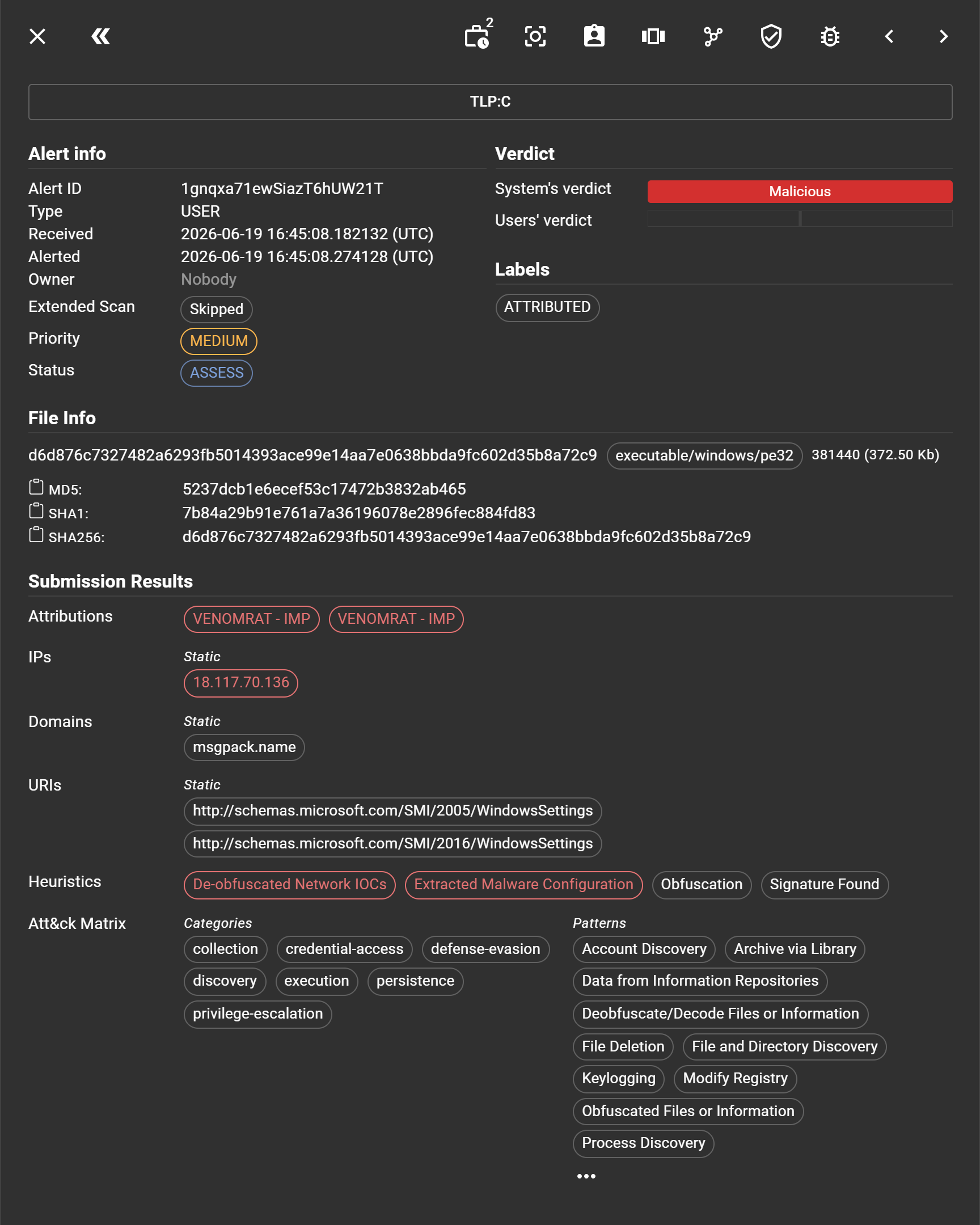
Clicking on an alert card will open the alert details view, where you can see all the information related to that specific alert.
This includes the classification, verdict, labels, file details, metadata, and indicators.
Alert details cover:
- Classification: Alert's security level.
- Basic Information: Key data about the alert.
- Verdict and Labels: The assessed threat level and relevant tags.
- File Details: Information such as filename, type, size, and hashes.
- Metadata and Indicators: Additional data points and potential security flags.
The actions that can be performed by triage analysts include:
- View History: Inspect the alert's change log.
- Show All Alerts From Group: Focus on alerts from the same category.
- Take Ownership: Claim the alert for case management.
- Go to Related Submission: Transition to connected submission details.
- Perform a Workflow Action: Execute predefined actions on group alerts.
- Mark as Non-Malicious: Label the alert as non-threatening.
- Mark as Malicious: Label the alert as a confirmed threat.
Workflow Management
You can automatically triage Alerts as they're generated by creating Workflows.
This can be an effective way to automated triage of high-confidence queries, lessening the alert fatigue for analysts.
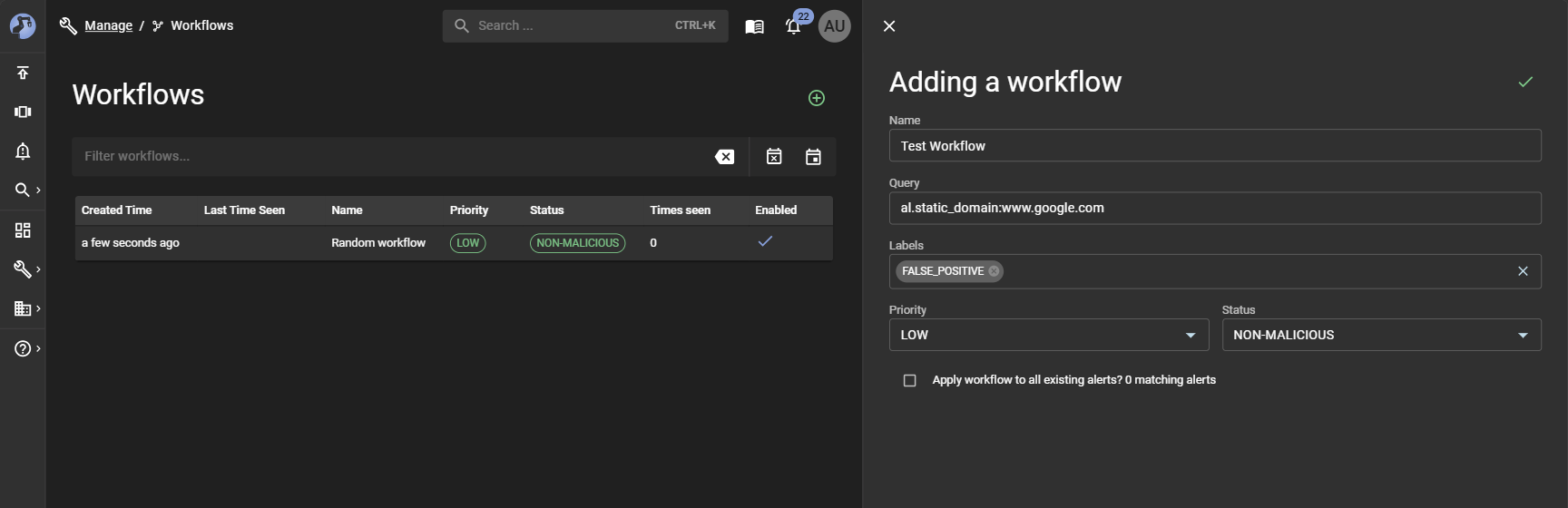
Creating Workflows
You can click on the "Add Workflow" () button to create a new Workflow object, which will require:
- Name: A name for the Workflow so it's easier to review.
- Query: What Alerts should match this workflows?
- Labels: A list of labels to assign to Alerts matching the query.
- Priority: How should Alerts matching this workflow be prioritized?
- Status: What should the state of the Alert be upon match?
You can optionally select the checkbox to apply your Workflow against existing Alerts. To save, click on the button.
Managing Workflows
The page provides two pre-programmed filters:
- Show workflows that were never used: Workflows that have no record of being to alerts raised by the system.
- Show workflows not used in the past 3 months: Workflows that have not been used in the last 90 days.
Both queries are useful for performing housecleaning of Workflows that are no longer relevant or need to be adjusted because they might be raising too often or too less resulting in ineffective alert triage.